How to Set Up Daily Executive Briefings on OpenClaw: Auto-Generate Your Morning Brief at 6:30 AM Local Time
Set up an OpenClaw skill that runs every weekday at 6:30 AM, pulls overnight email + calendar + Slack + market data, and delivers a personalized executive briefing to your inbox. Complete configuration walkthrough with launchd timer, skill JSON, and Composio scopes.

Daily executive briefings are the highest-frequency, highest-value workflow most executives run after OpenClaw deployment. The setup is straightforward but worth getting right because the briefing becomes a permanent part of the executive’s morning routine — most executives we work with report that the daily briefing is the workflow they’d give up last if they had to drop one. The complete configuration combines a launchd timer that fires at a chosen weekday time (typically 6:00-7:30 AM local), a custom OpenClaw skill that orchestrates the briefing assembly, Composio OAuth integrations to Gmail/Outlook for overnight email triage, Calendar for the day’s schedule, Slack for thread digests, and optional integrations for news feeds and market data. The local LLM (Mistral 7B Q4_K_M or Llama 3.1 8B running via Ollama on the Mac Mini) handles synthesis, summarization, and prioritization. Total setup time: 90 minutes for the initial briefing, with ongoing refinement over the first 2-3 weeks as the briefing tunes to your specific preferences. This article is the complete configuration walkthrough — the launchd plist, the skill JSON structure, the Composio scopes you’ll need, the LLM prompt template, role-specific customization patterns, quiet hours and weekend behavior, and the troubleshooting steps for the common issues. The workflow requires an always-on Mac Mini deployment because the launchd timer needs the system online when the briefing fires — order OpenClaw system with the standard $5,000 Mac Mini configuration is the architecture that makes 24/7 always-on briefing automation actually work.
What does the daily briefing workflow actually do?
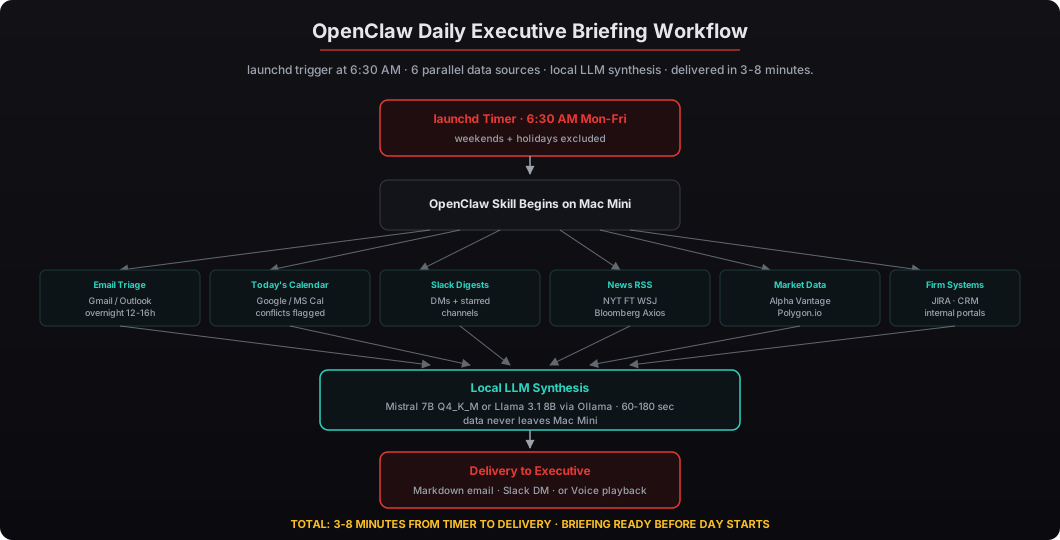
The daily briefing workflow is a scheduled OpenClaw skill that runs at a chosen weekday time, pulls data from multiple sources, synthesizes the data through the local LLM, and delivers a personalized briefing to a chosen output destination. The default skill behavior for a CEO briefing covers:
- Overnight email triage — fetches the last 12-16 hours of unread email from Gmail or Outlook, categorizes by sender importance and topic, and highlights items requiring response by mid-morning
- Today’s calendar — pulls the day’s meetings from Google Calendar or Microsoft Calendar, identifies any conflicts or back-to-back blocks, and flags meetings without agendas
- Slack thread digests — checks unread Slack threads in priority channels (typically Direct Messages and a small set of starred channels) and summarizes any threads requiring executive attention
- News scan — pulls headlines from configured news feeds (typically NYT, FT, WSJ, Bloomberg, Axios via RSS) and surfaces items relevant to the executive’s industry or watchlist topics
- Market data — for executives in financial services, family office principals, or executives at public companies, pulls overnight market summary, key index movements, and watchlist stock activity from Alpha Vantage or Polygon.io APIs
- Synthesis — local Mistral 7B or Llama 3.1 8B model assembles the inputs into a coherent 3-7 minute reading briefing, prioritized by what needs the executive’s attention first
The output is delivered to the executive’s inbox as a Markdown email by default, or as a Slack DM to a personal channel, or — with the Voice add-on configured — as a 3-5 minute audio briefing playable on AirPods during morning coffee or commute. Most executives we work with use the email delivery format because it integrates with their existing morning email-check routine.
I’ve configured this workflow for executives at boutique law firms, family offices, RIAs, AEC firms, and mid-market healthcare organizations. The setup pattern is the same; the specific prioritization and prompt template varies by role. The standard buy preconfigured OpenClaw deployment ships with the daily briefing skill pre-installed and configured for the executive’s role — typically the executive’s first OpenClaw workflow is running by end of deployment week.
How does the launchd timer schedule the daily briefing?
The launchd plist controls when the briefing fires. The default configuration runs Monday through Friday at 6:30 AM local time, skipping weekends and configured holidays. The plist is installed to ~/Library/LaunchAgents/com.beeeowl.openclaw.daily-briefing.plist and registered via launchctl load after installation.
The plist structure follows standard launchd conventions:
- Label — unique identifier for the daemon (e.g.,
com.beeeowl.openclaw.daily-briefing) - ProgramArguments — the command to execute (typically
/usr/local/bin/openclaw run skill daily-briefing) - StartCalendarInterval — array of calendar specifications defining when to fire (Hour: 6, Minute: 30, Weekday: 1-5 for Monday-Friday)
- StandardOutPath / StandardErrorPath — log file paths for debugging
- RunAtLoad — false (we don’t want it firing immediately on load)
For executives who want a different time, the plist can be edited and reloaded via launchctl unload + launchctl load. Common variations: 5:30 AM for early risers, 7:00 AM for typical schedules, 8:00 AM for executives starting at 9:00 AM. The briefing generation takes 3-8 minutes on Mac Mini M4 Pro, so scheduling 30-60 minutes before the executive’s typical start time ensures the briefing is in their inbox when they check email.
For executives who travel across time zones frequently, the configuration can include multiple time zone schedules. East Coast executives traveling to West Coast might have one briefing at 6:30 AM ET fired by the home Mac Mini for home schedule and one at 6:30 AM PT fired by a paired MacBook Air OpenClaw deployment for travel days. The two devices coordinate via shared Composio credentials so the briefing follows the executive’s actual schedule.
What Composio OAuth scopes are needed for the briefing?
The minimum scopes for a basic briefing are minimal — most are read-only. The Composio OAuth configuration is done once per integration during deployment, and tokens live in the Mac Mini’s macOS Keychain protected by the Apple Secure Enclave.
Required integrations:
- Gmail (
gmail.readonlyscope) or Microsoft Outlook (Mail.Read,Mail.Read.Shared) — for overnight email triage - Google Calendar (
calendar.readonly) or Microsoft Calendar (Calendars.Read) — for today’s schedule
Recommended integrations:
- Slack (
channels:history,groups:history,im:history) — for unread thread digests - News feeds — RSS-based, no OAuth required, just URL configuration
Optional integrations (based on role):
- Salesforce (read access to Opportunity, Account, Contact objects) — for pipeline-related flags relevant to CRO or sales-side executives
- HubSpot (read access to deals, contacts) — alternative to Salesforce
- Alpha Vantage (API key, free tier sufficient for daily use) — for market data summary
- Polygon.io (API key, free tier sufficient) — alternative or supplement to Alpha Vantage
- Internal firm systems — JIRA, Notion, internal portals via custom integrations
For executives at public companies or those serving on boards, additional integrations might include EDGAR feeds (no OAuth, just URL configuration), regulatory news from SEC.gov, and industry-specific data feeds. The OpenClaw skill JSON includes a configuration block where each integration can be enabled/disabled per executive preference.
What does the OpenClaw skill JSON actually look like?
The daily briefing skill is implemented as a standard OpenClaw skill with a JSON manifest, configuration block, and prompt template. The structure follows OpenClaw skill conventions documented in the openclaw skills guide and writing custom skills tutorial.
The skill JSON has four primary sections:
- Manifest — name, version, description, author, required permissions
- Configuration — integration toggles, prompt template, output format, delivery destination
- Action handler — the Python or Node.js code that orchestrates data collection, LLM synthesis, and output delivery
- Approval gates — optional human-in-the-loop checkpoints (rarely used for daily briefings since the workflow is read-only)
The prompt template is the most-edited part of the skill. The default CEO briefing prompt is approximately 400-600 words and structures the synthesis around: “Today’s priorities” (3-5 items requiring executive attention), “Calendar overview” (the day’s meeting structure with conflicts flagged), “Email flags” (response-needed items from overnight), “Slack catch-up” (any starred channel activity), “News context” (industry-relevant items), and “Market color” (if configured).
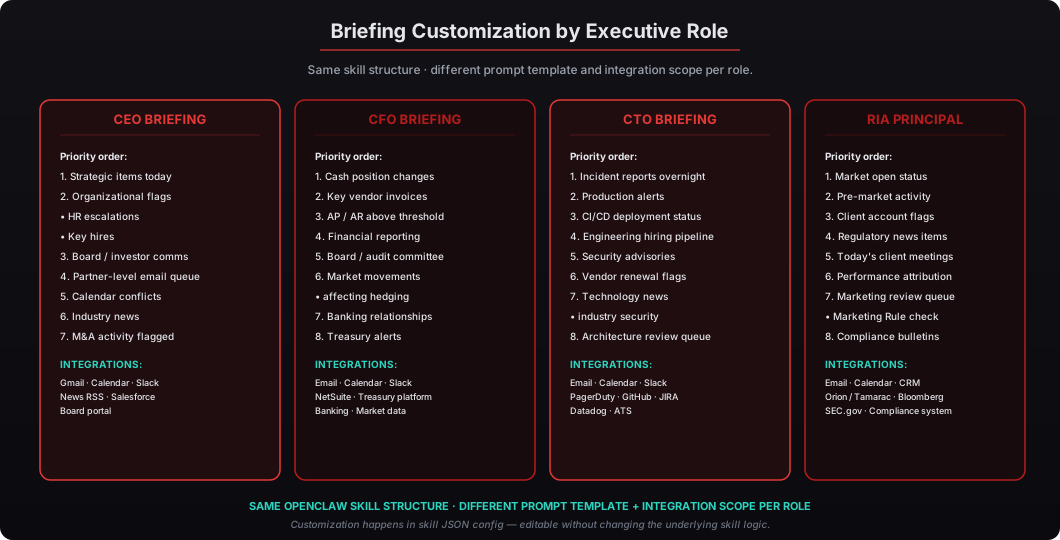
Role-specific customization changes the prompt template’s emphasis. A CFO briefing leads with cash position changes, key vendor invoice activity, and any financial system flags. A CTO briefing leads with incident reports, deployment status from CI/CD systems, and hiring pipeline activity. An RIA principal briefing leads with market open status, client account flags from portfolio management system, and any regulatory news items. The customization happens in the prompt template, not in the action handler code — making it easy to refine over time without touching the skill’s underlying logic.
How does the local LLM handle the synthesis?
Mistral 7B Q4_K_M is the default model for briefing synthesis. The 4-bit quantization produces a ~4GB model that loads quickly into Mac Mini M4 Pro unified memory and runs at 30-50 tokens/second. For a typical 600-1000 word briefing output, the synthesis takes 60-180 seconds depending on length and the complexity of the input data.
The synthesis prompt structure is straightforward. The skill assembles the integration outputs (email summary, calendar, Slack threads, news, market data) into a structured input document of typically 2,000-5,000 words. The LLM receives this as context along with the prompt template, the executive’s role-specific priorities, and any explicit instructions for the day (e.g., “highlight items related to the Q3 board meeting” if the executive has flagged a focus area).
For executives who want higher synthesis quality — more nuanced prioritization, better tone, more sophisticated reasoning about cross-source connections — Llama 3.1 8B Q4_K_M is the alternative at slightly lower throughput. The 8B model produces noticeably more sophisticated synthesis at the cost of 30-40% longer generation time.
For the highest-quality briefings, the configuration can route the synthesis step to GPT-4o or Claude via API — with the explicit tradeoff that the briefing data temporarily leaves the Mac Mini for the synthesis call. This makes sense for executives at very high-level positions where the briefing quality matters more than the privacy isolation, but most executives we work with stay with the local model for the data sovereignty story and find the quality entirely sufficient for daily workflow.
What about weekend and holiday behavior?
The launchd plist is configured by default to run Monday through Friday only, skipping weekends. The StartCalendarInterval array includes Weekday: 1-5 to enforce this. For executives who want a lighter weekend briefing (market wrap, weekend personal calendar, news without business email), a separate Saturday briefing skill is straightforward to configure with smaller integration scope — typically just calendar, news, and market wrap with email triage disabled.
Holiday handling is configured separately. Two patterns are common:
-
Manual holiday exclusions — add specific holiday dates to the launchd plist via date-specific exclusion logic. This works for US federal holidays where the executive wants the briefing entirely skipped. The plist can include additional
StartCalendarIntervalentries with logical NOT exclusions for the specific dates. -
Calendar-aware skipping — the skill itself checks the current date against a configured holiday calendar (US federal holidays, country-specific holidays, firm-specific holidays) and skips generation on those dates. This is the more flexible approach because it allows the executive to update the holiday list without touching the launchd plist.
For executives in regulated industries (RIA principals, healthcare executives, investment bankers), the holiday list often includes industry-specific dates: SEC examination periods, regulatory filing deadlines, board meeting weeks. The briefing can skip during these windows or shift to a different time that fits the executive’s adjusted schedule.
For traveling executives, the briefing can shift time zone automatically if the Mac Mini’s system clock is configured to follow the executive’s location (via macOS auto time zone). For executives whose Mac Mini stays in a home office while they travel, the configuration can include a separate travel-day briefing schedule that fires at a time appropriate to their destination time zone.
What’s the complete setup process — from order to first briefing?
The end-to-end setup takes approximately 90 minutes once the Mac Mini is on-site:
-
Mac Mini unboxing and initial setup (15 min) — the deployment arrives pre-configured. Plug in power, Ethernet or Wi-Fi, and HDMI for initial unlock with TouchID enrollment. macOS, FileVault, Gatekeeper, and SIP are already configured.
-
OpenClaw login (5 min) — log in to the OpenClaw runtime with the credentials provided with the deployment. The runtime is already installed and configured.
-
Composio OAuth setup (30 min) — connect Gmail/Outlook, Calendar, Slack, and any optional integrations. Each integration is a 2-3 minute OAuth flow. The tokens are stored in macOS Keychain.
-
Briefing skill configuration (20 min) — confirm or adjust the briefing time, output destination (email vs Slack vs voice), and role-specific prompt template. The default settings work for most executives without changes.
-
launchd plist installation (5 min) — install the plist file to
~/Library/LaunchAgents/, runlaunchctl loadto register the daemon. Verify withlaunchctl list | grep openclaw. -
First test run (15 min) — trigger the briefing manually to verify the data flow and output format. Iterate the prompt template if the output isn’t quite right. Most executives adjust the prompt 2-3 times in the first test session.
The first actual scheduled briefing fires the next weekday morning at the configured time. Most executives need 2-3 weeks of weekday briefings before the configuration settles into a preferred state — small adjustments to integration scope, output format, and prompt template emphasis happen during this break-in period. After that, the briefing runs reliably without further changes.
For executives ready to deploy private AI with daily briefing automation as the first workflow, buy secure OpenClaw online at the standard $5,000 Mac Mini tier. The deployment ships within one week with the daily briefing skill pre-installed and the launchd configuration documented for your role. The always-on Mac Mini hardware is the architecture that makes 24/7 scheduled automation actually reliable — laptops sleep, hosted VPS deployments cost more, and the Mac Mini sits in your office quietly handling overnight data while you sleep.