How to Write Your First Custom OpenClaw Skill in 30 Minutes (No Prior Code Required)
Complete 30-minute walkthrough for writing your first custom OpenClaw skill. Skill manifest, action handler, prompt template, local testing, installation, and approval gates explained in plain language for operators with no prior development experience.

Writing your first custom OpenClaw skill takes about 30 minutes if you’ve never written code and approximately 10 minutes if you’ve used Python or JavaScript before. The skill structure has four parts: the manifest JSON file that declares the skill name, version, permissions, inputs, and outputs; the action handler script (Python or Node.js) that contains the actual logic; the optional prompt template that controls how the local LLM is instructed for synthesis steps; and the configuration block that lets operators customize the skill without editing code. The skill development happens on the Mac Mini itself — install OpenClaw’s skill SDK, scaffold a new skill from the standard template, edit the manifest and action handler, test locally against the production data, and install when ready. This article is the complete authoring walkthrough — from “I’ve never written a skill” to “I have a working custom skill running in production.” The walkthrough builds a concrete example skill (weekly status report assembler) that an executive could deploy and use the day they finish reading. The skill development workflow requires an OpenClaw deployment to develop on — buy secure OpenClaw online at the standard $5,000 Mac Mini tier ships with the skill SDK pre-installed and ready for custom development.
What does an OpenClaw skill actually look like on the filesystem?
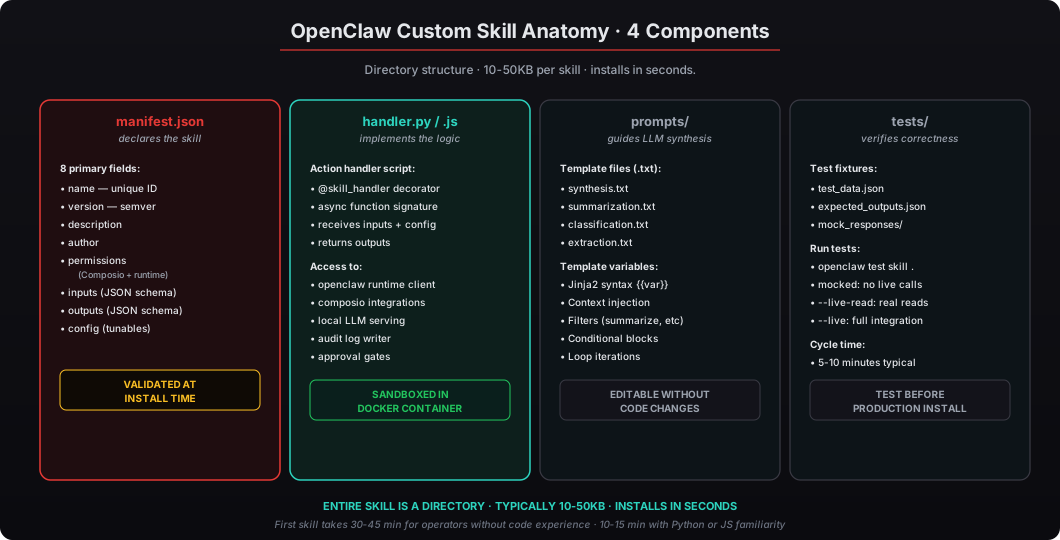
A custom OpenClaw skill is a directory with a small number of files. The standard structure:
my-weekly-status-skill/
  manifest.json       # skill metadata and configuration
  handler.py          # action handler script (or handler.js for Node)
  prompts/
    synthesis.txt     # optional LLM prompt template
  README.md           # optional documentation for other operators
  tests/
    test_data.json    # optional test fixtures
The minimum required files are manifest.json and the handler script. Everything else is optional. The skill directory can live anywhere on the Mac Mini during development — typical operator practice is to keep skill development in ~/Developer/openclaw-skills/ or similar.
The skill SDK is pre-installed on every Mac Mini OpenClaw deployment. To scaffold a new skill from the standard template, the operator runs:
openclaw skill new my-weekly-status-skill --template scheduled-reportThis creates the directory with manifest, handler, and prompt template stubs already populated with the standard “scheduled report” pattern. The operator edits the stubs to match their specific workflow rather than writing from scratch.
I’ve walked dozens of operators through their first skill development at firms ranging from family offices to mid-market law firms to AEC practices. The pattern is consistent: the first skill takes 30-45 minutes, the second skill takes 10-15 minutes, and by the third skill the operator is confident enough to start writing more sophisticated workflows. The buy preconfigured OpenClaw deployment ships with 8-12 standard skills already installed for the executive’s role, which provides working examples to study before writing your first custom skill.
What’s in the manifest.json file?
The manifest declares the skill’s metadata, permissions, and interface. The eight primary fields:
| Field | Purpose | Example |
|---|---|---|
name | unique skill identifier | weekly-status-report |
version | semantic version | 1.0.0 |
description | human-readable summary | Assembles weekly status from Gmail + Calendar |
author | who wrote the skill | Jane Smith, CFO |
permissions | required scopes + capabilities | ["composio:gmail:read", "composio:calendar:read", "openclaw:llm"] |
inputs | JSON schema for arguments | {"week_of": {"type": "string", "format": "date"}} |
outputs | JSON schema for return value | {"report": {"type": "string"}, "stats": {"type": "object"}} |
config | operator-tunable parameters | {"include_calendar": true, "max_email_summary_length": 500} |
The manifest validates against the OpenClaw skill schema at install time. Common validation errors: missing required fields, invalid permission strings, malformed JSON schemas for inputs/outputs. The validator produces clear error messages pointing to the specific manifest field that failed validation.
The permissions array is the most operationally important field. It lists which Composio integrations the skill can access (with read/write granularity), which OpenClaw runtime capabilities the skill can use (LLM inference, audit log writing, approval gates, scheduled execution), and which filesystem paths the skill can read or write. The OpenClaw runtime enforces these permissions at runtime — the skill cannot make API calls or access files outside its declared scope, even if the action handler attempts it.
How does the action handler script work?
The action handler is the function that executes when the skill runs. In Python, it’s decorated with @skill_handler:
from openclaw import skill_handler, openclaw
from openclaw.composio import gmail, calendar

@skill_handler
async def weekly_status_report(inputs, config):
    week_of = inputs["week_of"]

    # Pull data from Composio integrations
    emails = await gmail.search(
        query=f"after:{week_of}",
        max_results=config.get("max_emails", 50)
    )
    calendar_events = await calendar.list_events(
        time_min=week_of,
        time_max=add_days(week_of, 7)
    )

    # Optional: synthesize with local LLM
    synthesis = await openclaw.llm.generate(
        prompt_template="prompts/synthesis.txt",
        context={"emails": emails, "events": calendar_events},
        max_tokens=2000
    )

    # Optional: approval gate before sending
    if config.get("require_approval", False):
        approved = await openclaw.gates.request_approval(
            title="Weekly Status Report Ready",
            details=synthesis[:500] + "..."
        )
        if not approved:
            return {"report": None, "stats": {"status": "rejected"}}

    # Output the report
    return {
        "report": synthesis,
        "stats": {
            "emails_processed": len(emails),
            "events_processed": len(calendar_events),
            "status": "complete"
        }
    }
The Node.js equivalent uses async function exports with similar structure. The key elements:
Composio integration calls are scoped to the permissions declared in the manifest. If the manifest declares composio:gmail:read but not composio:gmail:write, the skill can call gmail.search() but not gmail.send_email(). The runtime enforces this at the API boundary.
Local LLM invocation through openclaw.llm.generate() uses the Mac Mini’s local Mistral 7B or Llama 3.1 8B model via Ollama. The prompt template is loaded from the skill’s prompts/ directory and rendered with the context variables you provide. Inference happens on-device; no data leaves the Mac Mini.
Approval gates through openclaw.gates.request_approval() pause skill execution and present the action details to the executive via macOS notification or email (configurable). The skill resumes when the executive approves or aborts cleanly when the executive rejects.
Audit logging is automatic. Every Composio call, LLM invocation, and approval gate decision logs to the skill’s audit trail with hash-chain integrity. No manual logging required.
Let’s actually build the weekly status report skill
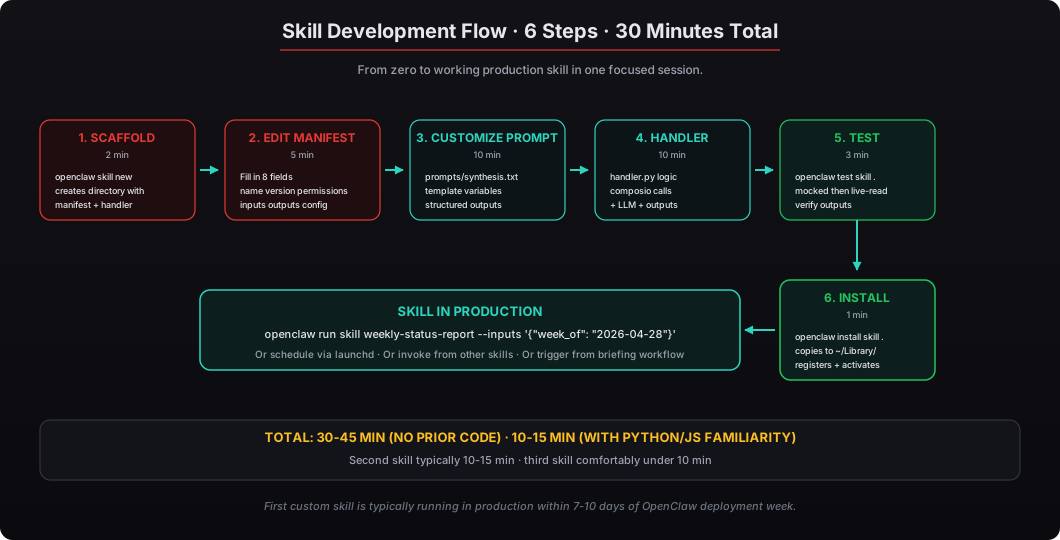
Here’s the 30-minute walkthrough to build a working weekly status report skill from scratch.
Step 1: Scaffold the skill (2 minutes)
openclaw skill new weekly-status-report --template scheduled-report
cd weekly-status-report
This creates the directory structure with stubs for manifest.json, handler.py, prompts/synthesis.txt, and tests/test_data.json.
Step 2: Edit the manifest (5 minutes)
Open manifest.json and fill in the fields:
{
  "name": "weekly-status-report",
  "version": "1.0.0",
  "description": "Weekly status report from Gmail and Calendar synthesis",
  "author": "Your Name",
  "permissions": [
    "composio:gmail:read",
    "composio:calendar:read",
    "openclaw:llm",
    "openclaw:audit"
  ],
  "inputs": {
    "type": "object",
    "properties": {
      "week_of": { "type": "string", "format": "date" }
    },
    "required": ["week_of"]
  },
  "outputs": {
    "type": "object",
    "properties": {
      "report": { "type": "string" },
      "stats": { "type": "object" }
    }
  },
  "config": {
    "max_emails": 50,
    "include_calendar": true,
    "synthesis_max_tokens": 2000
  }
}
Step 3: Customize the prompt template (10 minutes)
Edit prompts/synthesis.txt to control how the local LLM synthesizes the report:
You are writing a weekly status report for {{executive_name}}.

The week covers {{week_of}} through {{week_end}}.

Context data:
- Emails this week: {{emails | summarize}}
- Calendar events: {{calendar_events | summarize}}

Write a concise 500-800 word status report with these sections:
1. Key Accomplishments — what was done this week
2. Active Initiatives — what's in progress
3. Pending Decisions — what needs executive attention
4. Next Week — what's coming up

Use bullet points where appropriate. Lead with most important items.
Maintain {{executive_name}}'s tone: professional, direct, results-focused.
The prompt template is editable any time — adjustments take effect on the next skill run without requiring code changes or reinstallation.
Step 4: Implement the action handler (10 minutes)
The handler.py from the scaffolding template is mostly the Python code shown above. The 10 minutes are spent customizing it for your specific use case: which fields to extract from emails, how to format calendar events, what config options to expose, what error handling to include.
Step 5: Test locally (3 minutes)
openclaw test skill . --input '{"week_of": "2026-04-28"}'The test runner executes the skill against test data, verifies the manifest is valid, checks that the handler doesn’t exceed declared permissions, and shows the output. Fix any errors that surface.
For end-to-end testing with real Composio data:
openclaw test skill . --input '{"week_of": "2026-04-28"}' --live-readThis runs the skill against the real Composio integrations in read-only mode (no writes to external systems). Verify the output looks correct.
Step 6: Install for production (1 minute)
openclaw install skill .The skill is now installed at ~/Library/Application Support/OpenClaw/skills/weekly-status-report/ and available for invocation. Optionally schedule it to run every Friday afternoon via a launchd plist:
openclaw schedule skill weekly-status-report \
  --calendar "Fri 16:00" \
  --inputs '{"week_of": "{{this_week_monday}}"}'
The skill now runs every Friday at 4:00 PM, generates the weekly status report, and delivers it to the executive’s inbox.
When should I use approval gates?
Approval gates pause the skill mid-execution to request human confirmation. The pattern is: skill performs the read and analysis steps, prepares the action it wants to take, presents the action to the human for approval, then either executes upon approval or aborts cleanly on rejection.
Use approval gates for any action that writes to external systems with material consequences:
- Sending email on behalf of the executive — the executive should review the content and recipient before send
- Posting to public Slack channels — public visibility makes the action higher-stakes
- Updating CRM records that affect commission, forecasting, or external reporting
- Scheduling meetings with external parties — the executive’s calendar visibility matters
- Making purchases or financial commitments — obvious approval requirement
- Posting to social media — public visibility plus brand implications
Approval gates do not need to be on read operations, internal-only operations (Slack DMs to self, notes in personal scratch documents), or operations where the consequence of automation error is low (categorizing an email as read, marking a low-priority task complete).
The approval gate UX is typically a macOS notification with “Approve” and “Reject” buttons, plus an email notification for cases where the executive isn’t at the Mac Mini. For executives who travel and want approval gates accessible from anywhere, the configuration can include Slack or text message delivery of the approval request — the executive responds from their phone and the skill resumes.
How is this different from building an MCP server?
OpenClaw custom skills and MCP servers solve different problems. Custom skills are packaged actions that run inside the OpenClaw runtime with access to OpenClaw’s runtime features: Composio integrations, local LLM serving, audit logging, approval gates, scheduled execution. MCP servers are standalone services that expose tools to AI clients via the standardized Model Context Protocol. Tools exposed via MCP can be consumed by OpenClaw, Claude Desktop, Cursor, and any other MCP-aware client.
Use custom skills when:
- The workflow is OpenClaw-specific
- You need approval gates with the OpenClaw runtime
- You need audit logging with hash-chain integrity
- The skill benefits from scheduled execution via launchd
- You want the skill packaged with your firm’s other OpenClaw skills
Use MCP servers when:
- The same tools should be available to multiple AI clients
- You’re building a generally reusable integration
- The tools are language-agnostic services that benefit from a network-accessible API
- You want external developers to consume your tools
Most operators write custom skills for their personal workflow needs and build MCP servers when they want to expose internal firm tools to AI clients more broadly. Our MCP server tutorial covers the MCP path in detail for cases where it’s the right architectural choice.
What’s the path from first skill to skill author?
Most operators we’ve worked with follow a similar progression. Week 1: write the first skill from the tutorial (30-45 minutes), use it for a week, refine the prompt template based on output quality. Week 2-4: write 2-4 more skills covering different workflows the operator wants automated — typically a daily briefing variant, a meeting prep skill, a follow-up tracker, a report generator. Month 2-3: the operator gains confidence and starts writing more sophisticated skills with multiple Composio integrations, conditional logic, and approval gates. Month 4+: the operator has 8-15 custom skills running daily, the firm has a small library of internal skills that other operators can use, and the operator occasionally writes a more sophisticated skill that exposes internal firm data through an MCP server.
The skill authoring capability is the unlock that takes OpenClaw from “an AI agent platform” to “the firm’s customizable automation infrastructure.” The flexibility to write custom workflows that fit the firm’s specific operations — without involving external developers, without waiting for SaaS vendor roadmaps, without buying additional licenses — is the structural reason firms invest in private AI deployment.
For operators ready to start writing custom skills, buy openclaw system at the standard $5,000 Mac Mini tier ships with the skill SDK pre-installed, the standard skill library activated as working examples, and the development environment ready for first-skill authoring within the deployment week. For firms ready to build a customization-first AI capability, the OpenClaw deployment provides the architecture and the path — most operators have their first custom skill running in production within 7-10 days of deployment.