How to Back Up and Migrate Your OpenClaw Agent Without Losing Data
Learn how to back up your OpenClaw agent's state, credentials, and memory — and migrate between cloud and hardware deployments without downtime or data loss.
Why Does Backing Up Your OpenClaw Agent Matter?
Your OpenClaw agent isn’t just a config file. After weeks of operation, it holds conversation memory, OAuth tokens, trained workflows, custom skills, and cron schedules that took hours to build. Lose it, and you’re rebuilding from zero — re-authorizing every integration, re-teaching every pattern, re-creating every automation.

We’ve seen this firsthand. A client’s VPS provider had an unannounced disk failure. The agent was gone. No backup. Two days of manual reconstruction to get back to where they were. That’s two days an executive didn’t have their AI assistant handling email triage, calendar management, or deal flow summaries.
According to Veeam’s 2025 Data Protection Trends Report, 76% of organizations experienced at least one unplanned outage in the past 12 months. The average cost of downtime for a critical application is $1,467 per minute. Your OpenClaw agent may not be an ERP system, but if it’s managing your board communications and investor updates, the disruption is real.
The good news: OpenClaw’s architecture makes backups straightforward once you know what to include.
What Exactly Does an OpenClaw Agent Store?
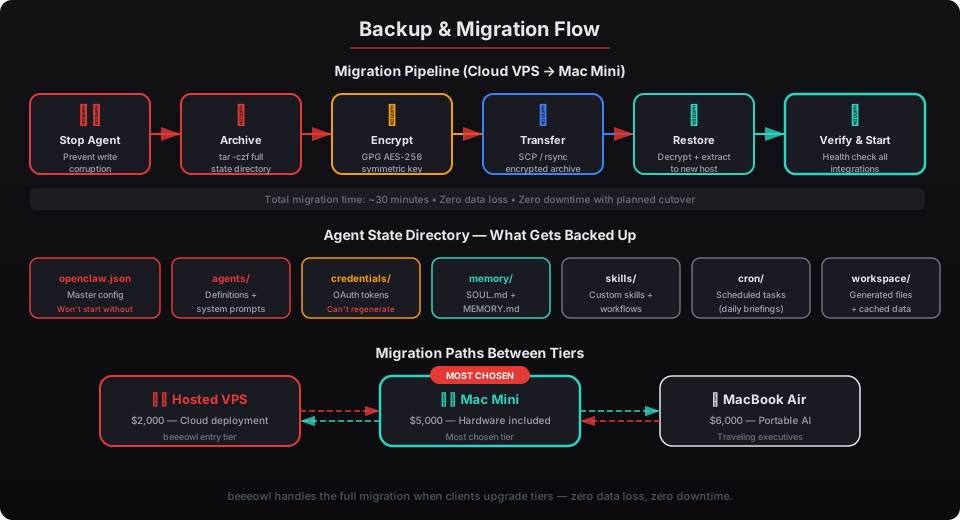
The full state of an OpenClaw agent lives in one directory tree. The master config file — openclaw.json — is only the tip of the iceberg. Here’s every component that needs backing up:
| Directory / File | What It Contains | What Happens If Lost |
|---|---|---|
openclaw.json | Master config, model settings, API keys | Agent won’t start |
agents/ | Agent definitions, system prompts, skill bindings | All agent personalities and routing rules gone |
credentials/ | Composio OAuth tokens, API keys, service accounts | Every integration disconnects — must re-authorize |
memory/ | Conversation history, SOUL.md, MEMORY.md | Agent loses all learned context and preferences |
skills/ | Custom skills, user-defined workflows | All automation logic must be rewritten |
cron/ | Scheduled task definitions | Recurring jobs (daily briefings, weekly reports) stop |
workspace/ | Generated files, cached data, working documents | Active project files and drafts disappear |
The OpenClaw documentation on state management confirms that the agents/ and credentials/ directories contain runtime state that isn’t recoverable from configuration alone. OAuth tokens in particular can’t be regenerated — they require re-authorization through each service’s consent flow.
In our experience, the memory/ directory is what clients miss most. After 30+ days of operation, an agent’s conversation memory contains patterns it’s learned about how you communicate, which reports you want on Mondays vs. Fridays, and how you prefer your meeting summaries formatted. That institutional knowledge takes weeks to rebuild — see our guide on building an executive briefing agent for how much context an agent accumulates.
How Do You Back Up an OpenClaw Agent Manually?
Stop the agent, archive the full state directory, and store the archive somewhere separate from the host machine. That’s the core process. Here’s the step-by-step.
Step 1: Stop the running agent. This prevents writes during the archive, which could corrupt conversation memory or in-progress credential refreshes.
docker compose -f /opt/openclaw/docker-compose.yml downStep 2: Create a timestamped archive of the entire state directory.
tar -czf openclaw-backup-$(date +%Y%m%d-%H%M%S).tar.gz \
  -C /opt/openclaw \
  openclaw.json agents/ credentials/ memory/ skills/ cron/ workspace/
Step 3: Move the archive off the host. A backup on the same disk as the agent isn’t a backup — it’s a copy. Transfer it to a separate machine, external drive, or cloud storage.
aws s3 cp openclaw-backup-*.tar.gz s3://your-bucket/openclaw-backups/Step 4: Restart the agent.
docker compose -f /opt/openclaw/docker-compose.yml up -dThe entire process takes under 60 seconds for a typical agent with a few months of history. Archive sizes range from 50MB to 500MB depending on workspace file volume.
One critical detail: encrypt the archive before uploading. The credentials/ directory contains OAuth tokens and API keys. We use GPG symmetric encryption on every beeeowl deployment — see our security hardening checklist for the full encryption configuration.
What Is the OpenClaw Checkpoint System and How Does It Work?
OpenClaw’s built-in Checkpoint system syncs your agent’s brain to a Git repository. It’s the closest thing to a native backup feature, and it works well for the most critical state files — but it doesn’t cover everything.
Checkpoint tracks three files: SOUL.md (the agent’s personality and instruction set), MEMORY.md (accumulated conversation patterns and learned preferences), and cron job definitions. When enabled, it commits changes to a private Git repo on a configurable schedule.
To enable Checkpoint:
openclaw checkpoint init --repo git@github.com:yourorg/openclaw-state.git
openclaw checkpoint schedule --interval 6h
This gives you version-controlled history of your agent’s memory and personality. You can roll back to any previous state, diff changes between dates, and audit exactly how the agent’s behavior evolved over time.
The limitation: Checkpoint doesn’t back up credentials/, workspace/, or the full agents/ directory structure. GitHub Issue #13616 in the OpenClaw repo has been tracking community requests for a comprehensive backup/restore feature since early 2026, with over 200 upvotes. Until that ships, you need both Checkpoint for memory versioning and manual archives (or the CLI skill) for the complete state.
We configure Checkpoint on every beeeowl deployment as a complement to full encrypted backups. It’s not a replacement — it’s an additional safety net for the most valuable data your agent produces.
How Do You Automate Daily OpenClaw Backups?
Set up a cron job on the host machine that runs the archive-and-upload process every night. Daily backups are the minimum for any production agent. For agents handling high-volume workflows like deal flow triage or email management, back up every 6-12 hours.
Here’s the automation script we deploy on every beeeowl client machine:
#!/bin/bash
# /opt/openclaw/scripts/backup.sh
BACKUP_DIR="/opt/openclaw"
TIMESTAMP=$(date +%Y%m%d-%H%M%S)
ARCHIVE="openclaw-backup-${TIMESTAMP}.tar.gz"
S3_BUCKET="s3://your-backup-bucket/openclaw"

# Stop agent
docker compose -f ${BACKUP_DIR}/docker-compose.yml down

# Create encrypted archive
tar -czf /tmp/${ARCHIVE} -C ${BACKUP_DIR} \
  openclaw.json agents/ credentials/ memory/ skills/ cron/ workspace/
gpg --symmetric --cipher-algo AES256 --batch --passphrase-file /root/.backup-key \
  /tmp/${ARCHIVE}

# Upload to S3
aws s3 cp /tmp/${ARCHIVE}.gpg ${S3_BUCKET}/${ARCHIVE}.gpg

# Restart agent
docker compose -f ${BACKUP_DIR}/docker-compose.yml up -d

# Clean up local temp
rm /tmp/${ARCHIVE} /tmp/${ARCHIVE}.gpg

# Retain last 30 days of backups in S3
aws s3 ls ${S3_BUCKET}/ | while read -r line; do
  createdate=$(echo $line | awk '{print $1}')
  if [[ $(date -d "$createdate" +%s) -lt $(date -d "-30 days" +%s) ]]; then
    filename=$(echo $line | awk '{print $4}')
    aws s3 rm ${S3_BUCKET}/${filename}
  fi
done
Add it to cron:
echo "0 2 * * * /opt/openclaw/scripts/backup.sh >> /var/log/openclaw-backup.log 2>&1" \
  | crontab -
This runs at 2 AM daily, encrypts the archive with AES-256, uploads to S3, and purges backups older than 30 days. The agent is offline for roughly 15-45 seconds during the process — short enough that most users won’t notice.
According to the NIST Cybersecurity Framework (SP 800-53), backup procedures should include encryption of backup media, offsite storage, and periodic testing. Our deployment process follows all three requirements.
For Mac Mini deployments, we also configure Time Machine as a local secondary backup. If S3 is unreachable, there’s always a local copy on an attached external drive.
How Do You Test That Your Backups Actually Work?
A backup you’ve never tested isn’t a backup — it’s a hope. We test restores quarterly on every beeeowl deployment, and we’ve found issues in roughly 15% of first-time restore tests across the industry.
The restore test process:
Step 1: Pull the latest backup from S3.
aws s3 cp s3://your-bucket/openclaw-backups/openclaw-backup-latest.tar.gz.gpg /tmp/
gpg --decrypt --batch --passphrase-file /root/.backup-key \
  /tmp/openclaw-backup-latest.tar.gz.gpg > /tmp/openclaw-backup-latest.tar.gz
Step 2: Extract to a temporary directory (not the live installation).
mkdir /tmp/openclaw-restore-test
tar -xzf /tmp/openclaw-backup-latest.tar.gz -C /tmp/openclaw-restore-test
Step 3: Verify directory structure and file integrity.
# Check all critical directories exist
for dir in agents credentials memory skills cron; do
  [ -d "/tmp/openclaw-restore-test/${dir}" ] && echo "${dir}: OK" || echo "${dir}: MISSING"
done

# Verify config parses correctly
python3 -c "import json; json.load(open('/tmp/openclaw-restore-test/openclaw.json'))"
Step 4: Optionally spin up a test instance on a different port to verify the agent starts and responds correctly.
Common issues we’ve caught during restore tests: permissions changes that prevent Docker from reading credential files, expired OAuth tokens that should have been refreshed before backup, and archive corruption from interrupted uploads. Finding these during a test is infinitely better than finding them during a real disaster.
How Do You Migrate an OpenClaw Agent from Cloud VPS to Mac Mini?
Back up the cloud instance, transfer the archive to the Mac Mini, restore the directory structure, and start the agent. The process takes about 30 minutes including verification. Zero data loss, zero downtime if you plan the cutover.
Here’s the migration we run when a client upgrades from beeeowl’s Hosted tier ($2,000) to the Mac Mini tier ($5,000):
Phase 1: Prepare the Mac Mini. We ship the Mac Mini pre-configured with macOS hardened for always-on operation, Docker installed, and OpenClaw’s base runtime ready — see our Mac Mini setup guide for the full configuration.
Phase 2: Create a final backup on the VPS.
# On the VPS
docker compose -f /opt/openclaw/docker-compose.yml down
tar -czf /tmp/openclaw-migration.tar.gz -C /opt/openclaw \
  openclaw.json agents/ credentials/ memory/ skills/ cron/ workspace/
gpg --symmetric --cipher-algo AES256 /tmp/openclaw-migration.tar.gz
Phase 3: Transfer to the Mac Mini. We use scp over a secure tunnel or, for larger state directories, upload to S3 and pull from the Mini.
scp /tmp/openclaw-migration.tar.gz.gpg user@macmini.local:/tmp/Phase 4: Restore on the Mac Mini.
# On the Mac Mini
gpg --decrypt /tmp/openclaw-migration.tar.gz.gpg > /tmp/openclaw-migration.tar.gz
tar -xzf /tmp/openclaw-migration.tar.gz -C /opt/openclaw/
chown -R openclaw:openclaw /opt/openclaw/
docker compose -f /opt/openclaw/docker-compose.yml up -d
Phase 5: Verify and cutover. We run the agent on both the VPS and Mac Mini in parallel for 24 hours, confirm all integrations work on the new hardware, then decommission the VPS.
One thing to watch: if the VPS was using a different hostname or IP in any webhook configurations, those need updating. Composio OAuth callbacks, Slack event subscriptions, and WhatsApp webhook URLs — see our guide on configuring OpenClaw for WhatsApp — all reference the host address. We update these during Phase 5 before cutting over.
What Changes Between Cloud and Hardware Deployments During Migration?
The agent state transfers identically. What changes is the network configuration, DNS routing, and how external services reach the agent. Here’s a comparison:
| Configuration | Cloud VPS | Mac Mini (Hardware) |
|---|---|---|
| Agent state directory | Identical | Identical |
| Docker configuration | Same compose file | Same compose file |
| External access | Public IP + reverse proxy | Cloudflare Tunnel or VPN |
| Webhook URLs | VPS IP or domain | Updated to new tunnel/domain |
| SSL certificates | Let’s Encrypt (automatic) | Cloudflare handles SSL |
| Backup target | S3 (same) | S3 + local Time Machine |
| Firewall | UFW / iptables | macOS firewall + pf |
| DNS | A record to VPS IP | CNAME to Cloudflare Tunnel |
The biggest architectural difference is network ingress. A VPS has a public IP — services can reach it directly. A Mac Mini sitting in an office is behind NAT. We solve this with Cloudflare Tunnel, which creates an outbound connection from the Mini to Cloudflare’s edge network. No open ports, no port forwarding, no exposed IP address. It’s actually more secure than the VPS setup — see our Docker sandboxing guide for how we layer network security.
Gartner’s 2025 Infrastructure Security Report found that 68% of cloud-based AI deployments had at least one misconfigured network access control. Moving to hardware behind a tunnel eliminates an entire category of exposure.
Can You Migrate Between Two Hardware Deployments?
Yes — the same process works for Mac Mini to Mac Mini, Mac Mini to MacBook Air, or any hardware-to-hardware transfer. The state directory is platform-independent because everything runs inside Docker containers.
The most common hardware migration we handle is Mac Mini to MacBook Air. An executive starts with a desk-bound agent in their office, then realizes they need their AI assistant on the road. The migration is identical to VPS-to-hardware:
- Back up the Mini’s state directory
- Transfer to the MacBook Air
- Restore and verify
- Update webhook URLs if the Cloudflare Tunnel ID changes
The entire cutover takes 30 minutes. The executive walks out of the office with their full agent history, all integrations active, and zero reconfiguration.
What’s the OpenClaw Backup CLI Skill and Should You Use It?
The openclaw-backup CLI skill is a community-built tool that wraps the manual backup process into a single command. Run openclaw skill install backup to add it, then openclaw backup create to generate an archive.
It’s convenient for one-off backups, but it has limitations. As ClawTank’s analysis of backup options noted, there’s no standardized backup format in the OpenClaw ecosystem yet. The CLI skill archives the state directory — which is the right approach — but doesn’t handle encryption, offsite transfer, or retention policies.
We use the CLI skill during interactive maintenance sessions where a client wants a quick snapshot before we make configuration changes. For automated daily backups, we use the shell script approach described above because it includes encryption, S3 upload, and retention management in a single workflow.
How Often Should You Back Up Based on Your Workload?
Daily is the minimum. More frequent backups make sense when the cost of lost work is high. Here’s how we recommend configuring backup frequency based on agent workload:
| Agent Workload | Backup Frequency | Rationale |
|---|---|---|
| Light (calendar, basic email) | Daily (2 AM) | Low volume of state changes |
| Moderate (email triage, meeting prep) | Every 12 hours | Significant daily memory accumulation |
| Heavy (deal flow, compliance, multi-integration) | Every 6 hours | High-value data processed continuously |
| Critical (financial reporting, legal workflows) | Every 4 hours + real-time Checkpoint | Data loss of even a few hours is costly |
For context, a typical CEO agent handling email, calendar, and weekly board prep generates about 2-5MB of new memory data per day. A VC agent running deal flow triage with 50+ inbound pitches per week generates 10-20MB. Neither is large — the archive process stays fast regardless of frequency.
Don’t Let a Disk Failure Undo Months of Agent Training
Your OpenClaw agent gets more valuable every week it runs. Conversation memory compounds. Workflow automations multiply. Integration configurations deepen. All of that lives in one directory on one machine.
Every beeeowl deployment ships with automated encrypted backups, tested restore procedures, and migration support between any deployment tier. When you’re ready to upgrade from Hosted to Mac Mini — or Mac Mini to MacBook Air — we handle the full transfer with zero data loss.
Request Your Deployment and we’ll configure backup automation as part of your one-day setup.